Sunday, August 5, 2012

HTML5 Charting Tool Performance Comparison

Akram El Assas has written up a performance comparison of dygraphs and a few other HTML5 charting libraries over at CodeProject.

dygraphs has always been written with large data sets in mind, and so it does quite well on these benchmarks. The one million point benchmark is particularly good:

dygraphs was the only library to complete the 1M point benchmark on 3/5 browsers, and was 6x faster than the competition on one of the others. There are a few tricks that we use to keep dygraphs running fast on large data sets. These are mostly under-the-hood, but they'll be great fodder for a future blog post.


Wednesday, August 1, 2012

Introducing Custom Plotters

Once you get your chart displaying with dygraphs, you'll want to customize its appearance.

dygraphs includes a plethora of options for doing simple customization, e.g. colors, strokeWidth, drawPoints, stackedGraph and fillGraph. You can see examples of all of these in use from the links off the options reference, or you can play around with them yourself using the experimental palette.

But what if you want to do something really crazy? To fundamentally change the way that data series are displayed? We've recently added a new plotter option which lets you customize to your heart's content.

The standard plotter just draws lines from point to point. While it's a bit more complex in reality, in essence, it's just this:

g = new Dygraph(div, data, {
  plotter: function(e) {
    var ctx = e.drawingContext;
    ctx.beginPath();
    ctx.moveTo(e.points[0].canvasx, e.points[0].canvasy);
    for (var i = 1; i < e.points.length; i++) {
      var p = e.points[i];
      ctx.lineTo(p.canvasx, p.canvasy);
    }
    ctx.stroke();
  }
});
(View/Edit in jsFiddle)

The plotter is called once for each series that needs to be drawn. Its one parameter is a dictionary of useful data about the series and the dygraph. The essential properties are the ones which we use here, namely:

  • drawingContext: a <canvas> drawing context on which you should render this series.
  • points: an array containing the individual points to draw. Each entry has a canvasx and canvasy attribute which tells you where to draw the point.

dygraphs will set up the drawing context for you as best it can. There's no need for you to set the stoke width or color for each series unless you want to do something unusual.

Other properties passed to the plotter include:

  • setName: the name of the series being drawn, e.g. "Y2"
  • color: the color of the series being drawn (you won't normally need this, see above)
  • strokeWidth: the width of the line being drawn (again, you won't normally need this, see above)
  • dygraph: A reference to current dygraph object (useful for calling getOption() and friends)
  • plotArea: Contains x, y, w and h properties which define the plotting rectangle.

As a simple example of what a custom plotter can do, let's make dygraphs draw bar charts instead of line charts.

Here's a bar chart plotter:

function barChartPlotter(e) {
  var ctx = e.drawingContext;
  var points = e.points;
  var y_bottom = e.dygraph.toDomYCoord(0);  // see http://dygraphs.com/jsdoc/symbols/Dygraph.html#toDomYCoord

  // This should really be based on the minimum gap
  var bar_width = 2/3 * (points[1].canvasx - points[0].canvasx);
  ctx.fillStyle = e.color;

  // Do the actual plotting.
  for (var i = 0; i < points.length; i++) {
    var p = points[i];
    var center_x = p.canvasx;  // center of the bar

    ctx.fillRect(center_x - bar_width / 2, p.canvasy,
        bar_width, y_bottom - p.canvasy);
    ctx.strokeRect(center_x - bar_width / 2, p.canvasy,
        bar_width, y_bottom - p.canvasy);
  }
}

And a dygraph that uses it:

g = new Dygraph(div, data, {
  plotter: barChartPlotter,
  dateWindow: [0, 9]  // avoid clipping first and last bars
});

and here's what the output looks like:

(View/Edit in jsFiddle)

Pretty easy! And since this is dygraphs, you get nice things like (animated) zooming, panning and hover labels for free. Try it out by clicking and dragging to zoom, or holding down shift and dragging to pan.

You can mix and match different plotters by setting the plotter option on a per-series basis. Here's how you might combine a line and bar chart (aka a Pareto chart):

g = new Dygraph(div, data, {
  "Late Arrivals": {
    plotter: barChartPlotter
  },
});
(View/Edit in jsFiddle)

This is admittedly a bit simplified: a real Pareto chart would list causes on the x-axis (instead of numbers) and would use two y-axes. In a future post, we'll try to recreate this Wikipedia Pareto chart more precisely using a valueFormatter and a secondary y-axis.

In the mean time, check out the plotters demo for some examples of how to use this exciting new tool.

Friday, May 4, 2012

Canvas Adoption in Major Browsers

(if you're reading this in an RSS reader, come to the blog to see some nice charts!)

dygraphs is based around the <canvas> tag, which first appeared in Safari in 2004. It was quickly adopted by other browsers, with one notable exception.

When I initially wrote dygraphs in 2006, Internet Explorer market share was 80–90%. When I released it in late 2009, <canvas> was still supported in less than 50% of browsers. Recently, however, that has been changing dramatically:

​

With over 80% of browsers supporting it, the conventional wisdom that <canvas> is not "safe" to use needs some rethinking!

There are two drivers of this phenomenon.

The first is Google Chrome. Since its debut in 2008, Chrome has achieved over 30% market share. Over the same time span, Firefox has gone from 26% to 25%. Nearly all of Chrome's gains, in other words, have been coming from IE:

The other driver was the introduction of IE9, the first version of Internet Explorer to support <canvas>:

Firefox and Chrome have been increasing <canvas> support for years by eating away at IE's market share. IE9 has accelerated the trend by making Internet Explorer a better browser.

What does this all add up to? It means that hacks like excanvas won't be necessary for much longer, as more and more web users get a first class dygraphs experience.

Data source: statcounter


Monday, April 30, 2012

How to download and parse data for Dygraphs

One of the best things about Dygraphs is its simplicity under one of the most common circumstances - reading and rendering a CSV file from the web. And most people who use Dygraphs don't really care about data formats - they just want to graph their data. So users get unhappy when their CSV format doesn't quite fit their requirements. For example, here are some questions asked on our mailing list in the past week alone:
  1. Change the field separator in the CSV
  2. Hide columns from a CSV in the graph
  3. Split one CSV with four series into four separate graphs
  4. Combine two CSV files on one graph

If you know Dygraphs, you already know that 1, above, can most often be solved using the delimiter option (although in the user's specific case, it would not have helped, custom parsing was necessary.) And you also know that 2, above can be solved with the visibility option.

These aren't the only use cases. I recently wanted to add an additional synthetic column to my data by adding the value of two existing columns. But, as Dan recently said, Dygraphs is more about visualizing data than processing it.

Now, you might, if you've built an industrial app, just change your server code to convert your data into the format you require by adding a column, changing the delimiter, what have you. But sometimes you might not have control over the data coming from the server, or perhaps you're trying to build a one-off, and the most convenient place to make that change might be in the browser. So let's talk about what Dygraphs does when it receives a URL parameter, how it parses CSV data, and just how ridiculously easy it is for you to do it yourself.

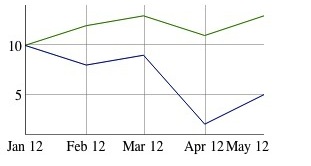
Let's take the example of wanting to add a synthetic column: Let's say I have a CSV file called data.csv that looks like so:
Date,A,B
2012/01/01,10,10
2012/02/01,12,8
2012/03/01,13,9
2012/04/01,11,2
2012/05/01,13,5

Perfect, that's easy enough to render using the smallest bit of Javascript:

new Dygraph(div, 'data.csv');

Wow, that's simple.

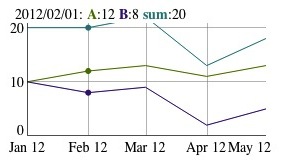
In our case, we're want to add a synthetic column to data.csv that takes the sum of A and B. Unfortunately, this means we can no longer have code as simple as new Dygraph(div, 'data.csv');

We're going to do three things:
1. Download the file
2. Parse its contents
3. Add the column

Downloading the file

When you specify a URL (or filename) in the Dygraph constructor, it fetches the content for you using XMLHttp, the backbone of Web 2.0. Here's the snippet required to fetch the content:
var req = new XMLHttpRequest();
req.onreadystatechange = function () {
  if (req.readyState == 4) {
    if (req.status === 200 || // Normal http
        req.status === 0) { // Chrome w/ --allow-file-access-from-files
      var data = req.responseText;
      drawGraph(data);
    }
  }
};
req.open('GET', 'http://localhost:8000/data.csv', true);
req.send(null);
var drawGraph = function(data) {
  console.log(typeof(data));
  console.log(data);
  new Dygraph(div, data);
}

I added the console.log at the end just to demonstrate that the data is a String representation of the file.
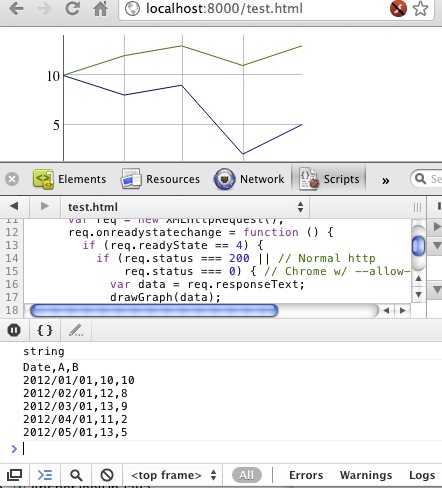

I'm not going to go into detail about the XMLHttpRequest API - that's for experts in that domain to handle, and also, this document covers it. Suffice it to say that the callback is required since the XMLHTTPRequest is asynchronous. You can also read the private function start_ in dygraph.js.

Parsing the contents

So that first part wasn't so bad. Parsing the contents is going to be similarly easy. We're going to turn the CSV into an array. Go read the section in the Dygraphs Data Format document on arrays, and pay close attention to this piece of text:
If you want your x-values to be dates, you'll need to use specify a Date object in the first column. Otherwise, specify a number. Here's a sample array with dates on the x-axis:
So since in this case, the first column is a date, we'll have to turn it the values in the first column into Date objects, and turn our subsequent values into numbers.
var toArray = function(data) {
  var lines = data.split("\n");
  var arry = [];
  for (var idx = 0; idx < lines.length; idx++) {
    var line = lines[idx];
    // Oftentimes there's a blank line at the end. Ignore it.
    if (line.length == 0) {
      continue;
    }
    var row = line.split(",");
    // Special processing for every row except the header.
    if (idx > 0) {
      row[0] = new Date(row[0]); // Turn the string date into a Date.
      for (var rowIdx = 1; rowIdx < row.length; rowIdx++) {
        // Turn "123" into 123.
        row[rowIdx] = parseFloat(row[rowIdx]);
      }     
    }     
    arry.push(row);
  }     
  return arry;
}

You'll also need to split out the header row as the labels option.
var drawGraph = function(data) {
  var arry = toArray(data);
  var firstRow = arry[0];
  var data = arry.slice(1); // Remove first element (labels)
  new Dygraph(div,data, { labels: firstRow });
} 
This code sample doesn't address all cases for parsing. For instance, it expects the first column to be a date string. If you want to know more about how Dygraphs parses CSV, read the parseCSV_ function in dygraph.js.

Adding the column

Now we have an array, it should be dead simple to add the additional column. Here's what we know:
  1. The first row contains the headers, so we'll need to add an additional element to the header array.
  2. Each subsequent row in the array contains data, and those values will be in the row's second and third elements (indexes 1 and 2.)
And here it is. Pretty straightforward:
var drawGraph = function(data) {
  var arry = toArray(data);
  var firstRow = arry[0];
  var data = arry.slice(1);
  firstRow.push("sum");
  for (var idx = 0; idx < data.length; idx++) {
    var row = data[idx];
    var sum = row[1] + row[2];
    row.push(sum);
  }
  new Dygraph(div,data, { labels: firstRow });
}
Addenda

  • Oftentimes, people ask about the ability bypass the browser cache when fetching data to ensure the graph is always up to date. Since it's of related interested, I've included a reference to bypassing the cache here.
  • Javascript libraries simplify the work around XMLHttp, so instead of having to write all the code above, you might want to invest some time in using jQuery (with its ajax function) or the Closure library.
  • Don't forget that the URL you request for data needs to be on the same domain as the page requesting it, otherwise your XHR will be rejected.
  • Javscript's parseFloat is not precisely the same as Dygraphs' own parseFloat_ method. Read the code for details.

Saturday, March 31, 2012

Testing from the Command Line with PhantomJS

I learned about the PhantomJS project recently and thought that it would be a good fit for dygraphs.

Our current testing setup involves several steps:
  1. Start a jstd server from the command line.
  2. Visit the server in the browser that you want to test.
  3. Run the jstd command with "--tests all" set.
  4. Tear everything down.
That's not too bad, but there is enough overhead that we don't run tests as frequently as we should. Case in point: I broke one of our tests nine days ago, but didn't realize it until this morning.

With phantomjs, this process is streamlined. You can do everything from the command line:

$ ./test.sh
Ran 118 tests in 1.397s.
118 test(s) passed
0 test(s) failed:
PASS


Phantom creates a headless web browser using WebKit. You drive the browser using JavaScript, and can execute commands in the context of any web page. I'm excited that it's working so well for dygraphs. No we'll have no excuses for not running auto_tests!

Monday, March 19, 2012

Swipe and pinch now work with Dygraphs!

Check it! Swipe and pinch now work with Dygraphs!


Dan, inspired by his new iPad 3, did some weekend hacking and made pinch and zoom work in Dygraphs. This also worked on my Samsung Galaxy Nexus, although the new Chrome browser is much more responsive than the default one.

You can see this for yourself at http://dygraphs.com/tests/demo.html

Wednesday, March 14, 2012

JavaScript and Dates, What a Mess!

We recently had a dygraphs regression where a date specified as "2012-03-13" would be displayed as "2012-03-12 20:00" when you hovered over it (or something else depending on your time zone).

The culprit wound up being surprising behavior from JavaScript's Date parser. Here's the gist of the problem, via the Chrome JavaScript Console:

> new Date("2012/03/13")
Tue Mar 13 2012 00:00:00 GMT-0400 (EDT)
> new Date("2012-03-13")
Mon Mar 12 2012 20:00:00 GMT-0400 (EDT)

So, why the discrepancy of four hours between these seemingly-identical dates? Here's another puzzler:

> new Date("2012-03-13")
Mon Mar 12 2012 20:00:00 GMT-0400 (EDT)
> new Date("2012-3-13")
Tue Mar 13 2012 00:00:00 GMT-0400 (EDT)

Why does that extra zero in the first form subtract four hours?

I've run into many issues with new Date and Date.parse while working on dygraphs over the years. This issue inspired me to put together…

The Comprehensive Cross-Browser
JavaScript Date Parsing Table

On that page, you'll see how a variety of browsers do (or don't) parse particular date strings.

Here are some rules of thumb:

  • Stick to "YYYY/MM/DD" for your date strings whenever possible. It's universally supported and unambiguous. With this format, all times are local.
  • Avoid using hyphenated dates ("YYYY-MM-DD") unless you know what you're doing. Only newer browsers support them.
  • So long as you specify four digits years, date strings at least have a unique parse across all browsers. Some browsers may return an error, but you won't get inconsistent behavior.
  • Chrome tends to be more accepting than other browsers. If a date format parses in Chrome, you shouldn't assume that it parses anywhere else.
  • If a recent browser can interpret as date string as ISO-8601, it will. With this format, your date/time string is interpreted as UTC.

With the table and these rules of thumb in hand, let's take another look at those mysterious Date parses from the beginning of the post:

> new Date("2012/03/13")
Tue Mar 13 2012 00:00:00 GMT-0400 (EDT)

This parses to midnight in the local time zone. This behavior is universal across browsers.

> new Date("2012-03-13")
Mon Mar 12 2012 20:00:00 GMT-0400 (EDT)

This can be interpreted as an ISO-8601 date, and so it is (following our last rule of thumb). This means that it is parsed as UTC. But it is displayed using local time. I'm in the EDT time zone, hence the difference of four hours. This format is only supported by newer browsers (Chrome, FF4+, IE9).

> new Date("2012-3-13")
Tue Mar 13 2012 00:00:00 GMT-0400 (EDT)

This cannot be interpreted as an ISO-8601 date, since it's missing a "0" in front of the month ("3" vs. "03"). So Chrome falls back to interpreting this as a local time. At the moment, Chrome is the only browser which supports this particular gem of a format.

A final cautionary note: if you are writing a library and wish to convert date strings to millis since epoch, the built-in Date.parse method looks like just the ticket. But you'll eventually run into an issue. For reasons known only to its authors, MooTools overrides this function with an incompatible version (theirs returns a Date, not a number). What you really want is new Date(dateString).getTime().

So if you're writing a library and you get a date string from your user, what should you do with it? In dygraphs, the answer keeps getting more and more complicated.